Copy Trading Via Bot
The Telegram bot includes a copy trading wizard for setting up and managing copy tasks from chat.

Access it via the 🚀 Copy trading button from the main menu, or with the /copy command. Either path opens the Copy Trading menu.
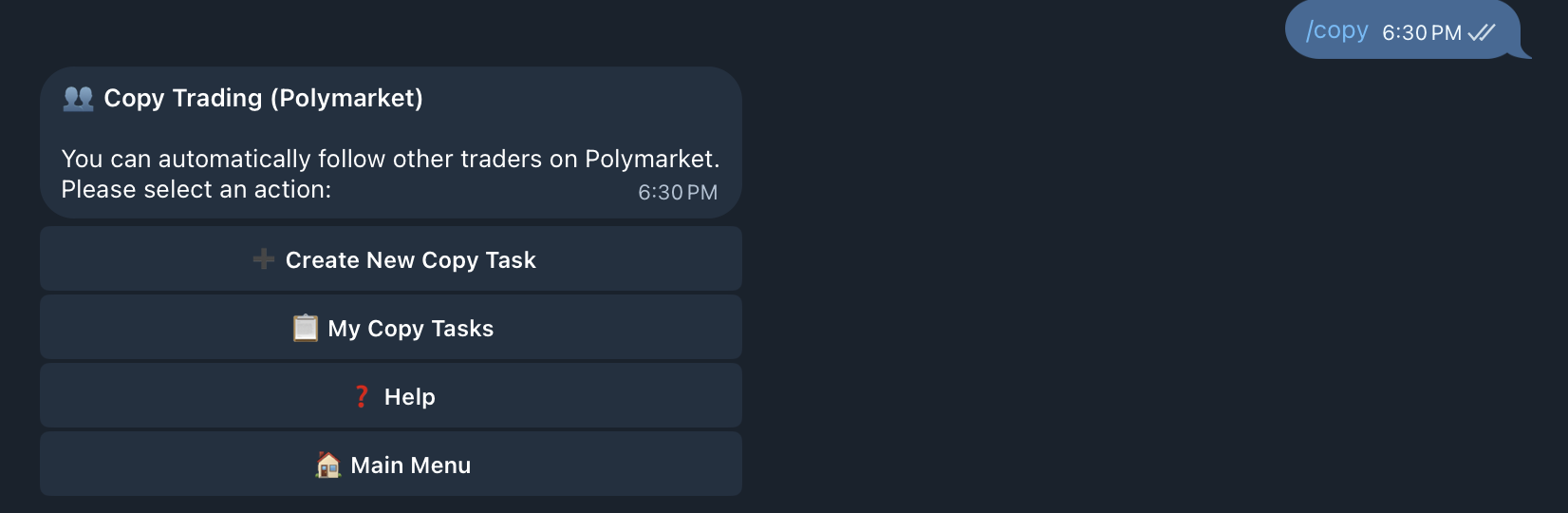
Copy trading wizard
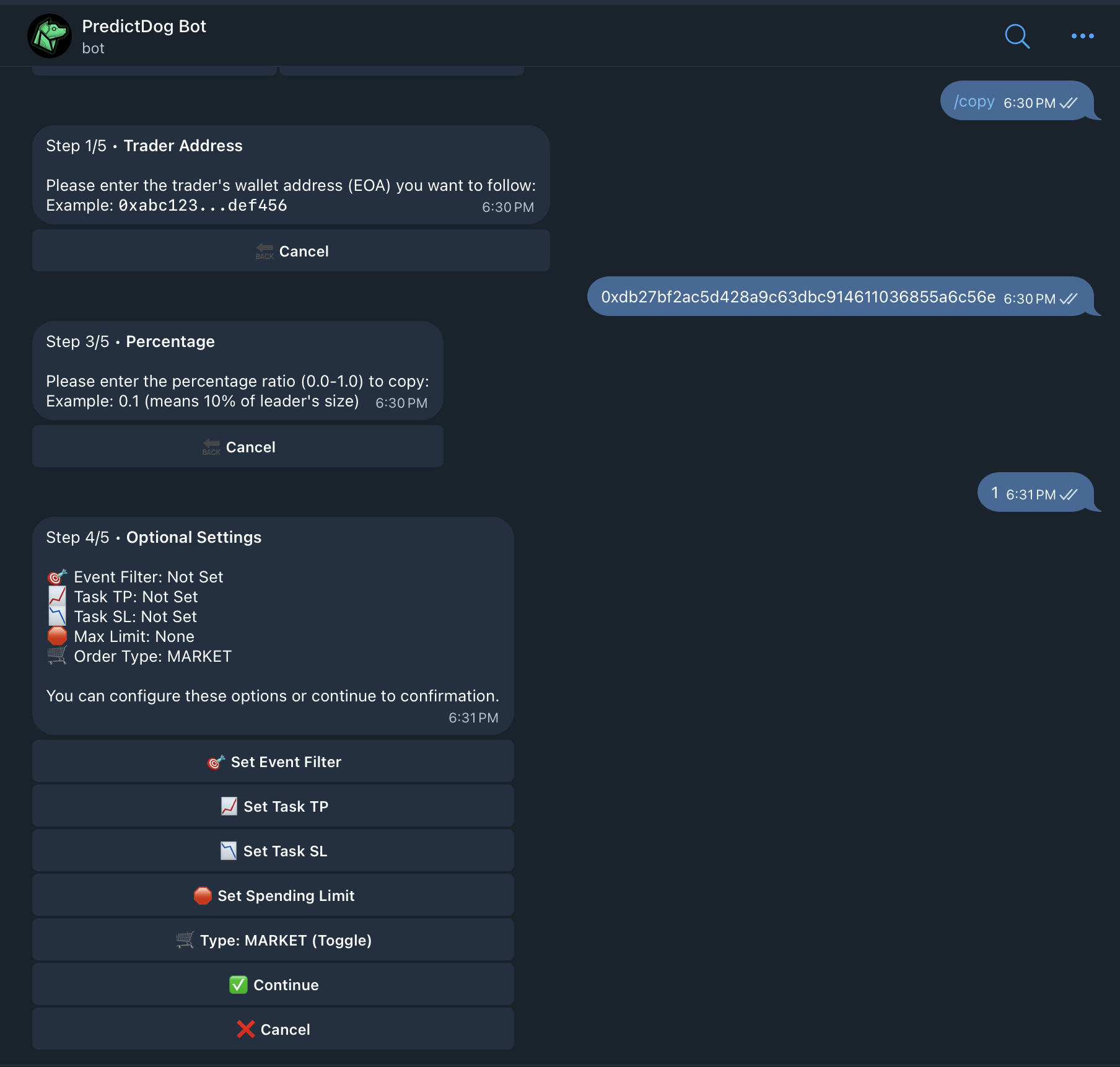
The wizard walks you through setup in 5 steps:
Step 1 — Enter trader address Paste the Polymarket wallet address of the trader you want to copy.
Step 2 — Choose copy mode
- Fixed amount — copy each trade with a set USDC.e amount
- Percentage-based — copy each trade as a percentage of the leader's position size
Step 3 — Set copy amount
Enter the fixed USDC.e amount or percentage ratio (e.g. 0.1 = 10% of the leader's size).
Step 4 — Optional settings Configure any combination of:
- Event filter — restrict the task to a specific event ID (leave unset to follow all activity)
- Task TP / Task SL — take profit and stop loss as realized PnL percentage thresholds
- Spending limit — cap total USDC.e the task can spend
- Order type — Market Order or Limit Order for copied trades
See Copy Trading for how TP/SL work at the task level.
Step 5 — Review and confirm Review the full task configuration and confirm to activate.
Task management commands
:::note TODO
Add screenshot of /listcopy output (tg-bot-copy-trading-tasks.png) — active task list with trader address and status.
:::
Once a copy task is running, use these commands to manage it:
/listcopy
Lists all active and stopped copy trading tasks, including trader address, mode, amount, and current status.
/stopcopy <address>
Stops copying the trader at the given address across all markets.
/stopcopy <address> <event_id>
Stops copying the trader only for a specific event, leaving other copy tasks for that trader intact.
What stopping a task does
Stopping a copy task — whether manually, by take profit, or by stop loss — does not automatically close any copied positions. Existing open positions remain open until you or the followed trader closes them through normal trading flow.
Web vs. Telegram for task management
Telegram is useful for quick task creation and status checks. The web terminal is better for reviewing realized task progress, budget usage, and task stop reasons.
See Copy Trading for a full explanation of how task risk controls work.